![LaserStar Technologoes Logo-01.png]](https://26739.fs1.hubspotusercontent-na1.net/hub/26739/hubfs/LaserStar%20Technologoes%20Logo-01.png?height=40&name=LaserStar%20Technologoes%20Logo-01.png)
Scope: This procedure explains how to reset all alerts on G3 Systems welders.
Pre-Checks: Make sure the laser welder is turned off, that both “Main” and “Key” Switches are set to the off positions, and that the laser welder is plugged into the AC wall outlet before beginning the procedure.
Procedure:
- Turn the welder on via the main and key switches. Requirement: the laser system will go through its software initialization process, display the support screen, and then proceed to the main screen on the touch screen display. See images 1 & 2 for reference.
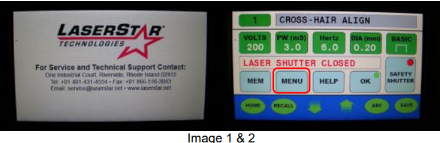
- To reset the alerts, press the “Menu” button on the touch screen (see image
2) to display the main menu screen; see image 3 for reference.
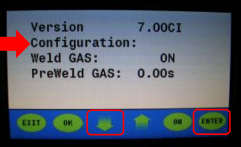
- Select the “Configuration” screen using the down arrow key, then press the enter key to display the configuration screen; the cursor should be next to “configuration” before the enter key is pressed. See image 4 for reference.
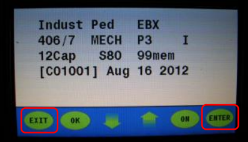
- Press "ENTER" and then "EXIT"
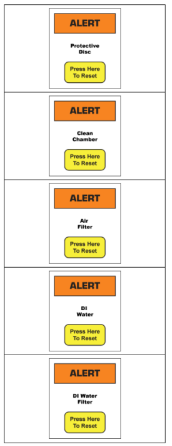
- Once return to the previous screen, press "ENTER" again. The alerts will
start to appear. See Image 5 for reference. - Press "RESET" on each of them. The counters will reset again.
Was This Article Helpful?
Please take our survey and share your feedback.
Do you still need help?
If you need our assistance with your issue, please get in touch with our customer support team at (1) 888-LST-SRVC (578-7782). If you're looking for support outside of our regular business hours, please leave a voice message or send an email to service@laserstar.net